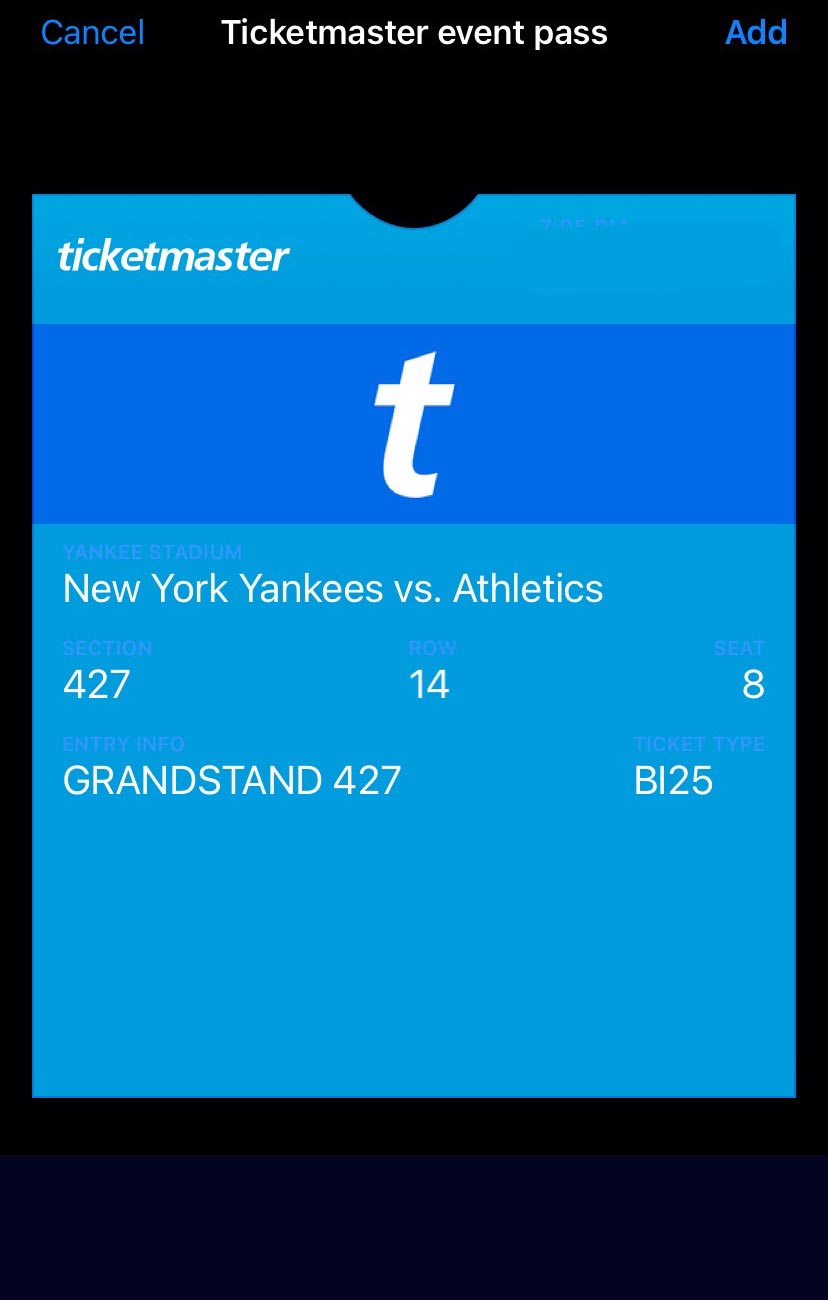

How to receive your tickets through Ticketmaster

Contents of this page

This page explains how to receive your mobile tickets with a moving barcode through Ticketmaster for customers who purchased tickets from “At Broadway” or “At New York.”
What does it mean to download tickets through Ticketmaster?

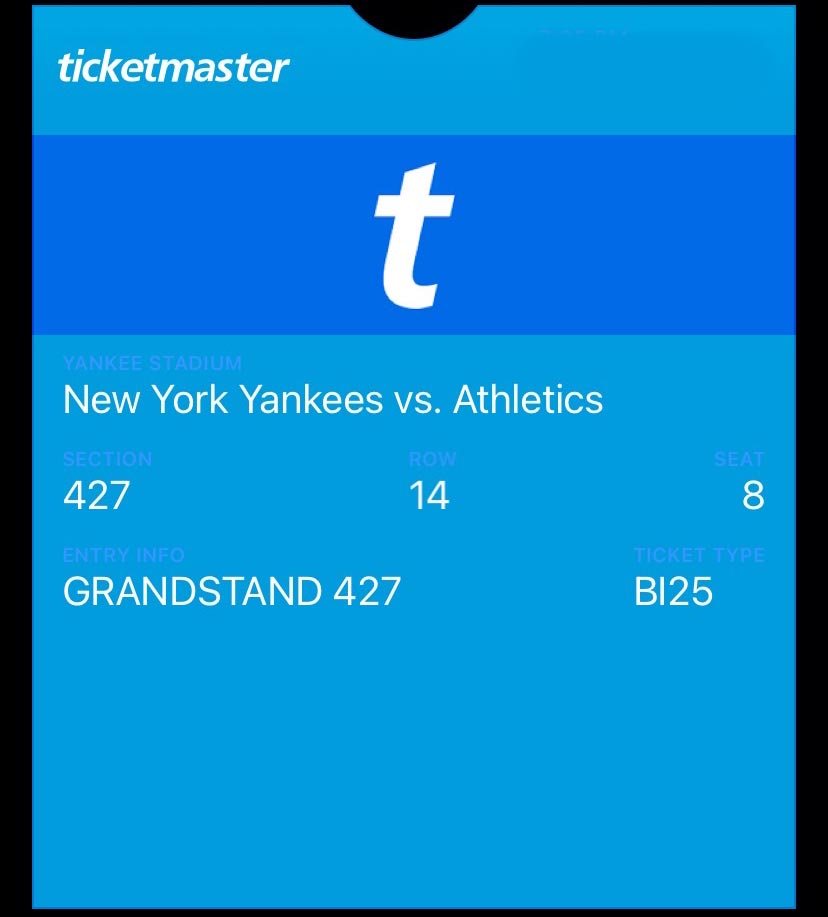
If we informed you that your tickets must be received through Ticketmaster, it means your tickets can only be received through the ticketing site Ticketmaster. To receive your tickets, you must first create a Ticketmaster account. After that, you will log in to your account, display your tickets, and use them for entry.

Please follow the steps below to receive your tickets.

First, create a Ticketmaster account (required)

① Access the Ticketmaster website from your smartphone

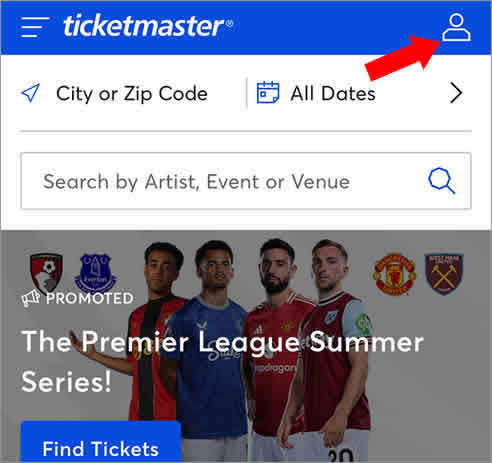
  1. Open Ticketmaster on your smartphone
    URL: https://www.ticketmaster.com
  2. Tap the person icon in the top right corner
  • There is also a Ticketmaster app, but if you are unable to install it on your device, please access Ticketmaster using your smartphone browser instead
  • Ticketmaster may not open properly in some browsers on certain smartphones. Please try using a different browser app such as Chrome, Yahoo!, Firefox, Microsoft Edge, or Safari, search for Ticketmaster, and then try logging in.
  • We have received reports that Ticketmaster may not open properly in the Google app. If that happens, please try using a different browser, such as the Yahoo! app.

If you absolutely cannot open Ticketmaster, please try again after arriving in the U.S. and connecting to local Wi Fi. In many cases, the page may not load properly or the screen may stay blank depending on your network or location.
② Create your account from “Sign Up” on the login screen

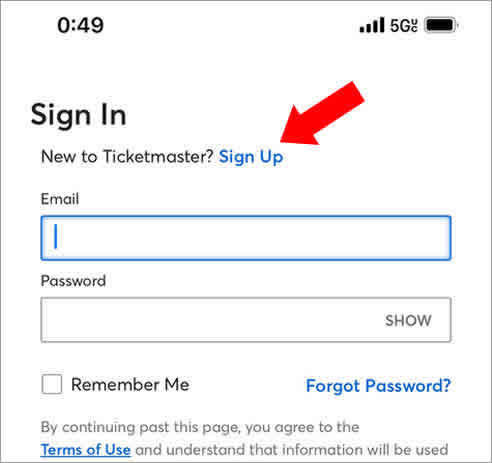
  1. Tap “Sign Up” to open the account creation page
  2. Create your account using the same email address you used when making this purchase
  3. Once your account has been created, make a note of your password
  • For the phone number section, tap the U.S. flag, select “Other,” then enter +81 followed by your mobile number without the initial 0
Please note
  • Please be sure to create your account using the same email address you registered at the time of booking
  • If you need to create the account with a different email address, such as for a proxy booking, please contact us before receiving your tickets

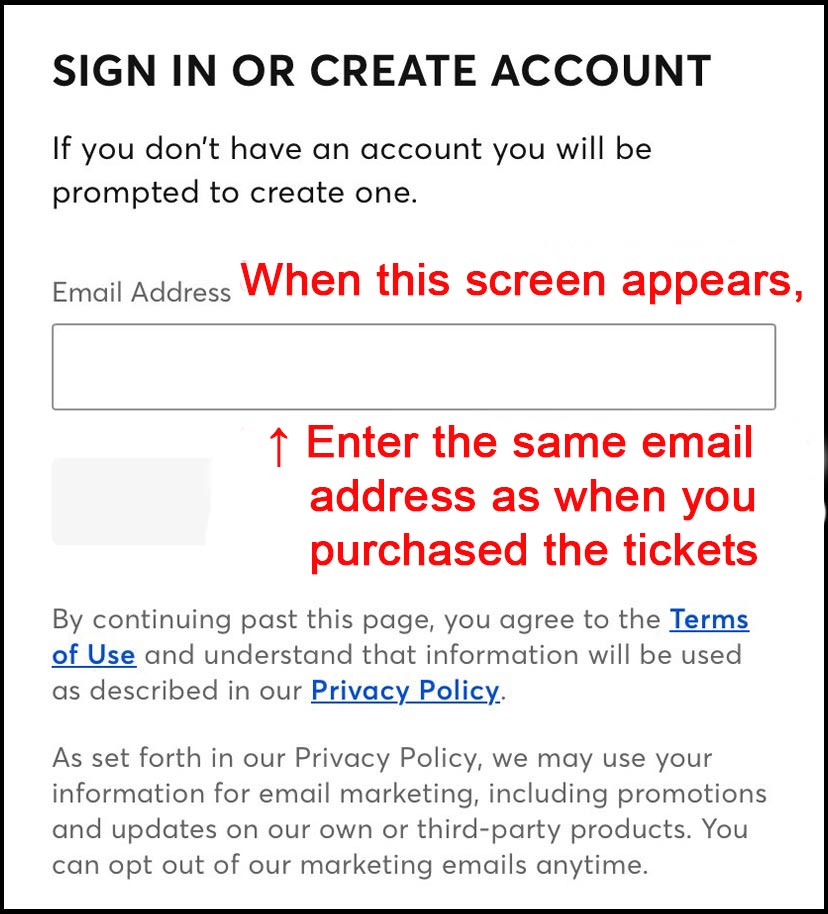
Extra tip: If you open Ticketmaster another way and see the screen below…

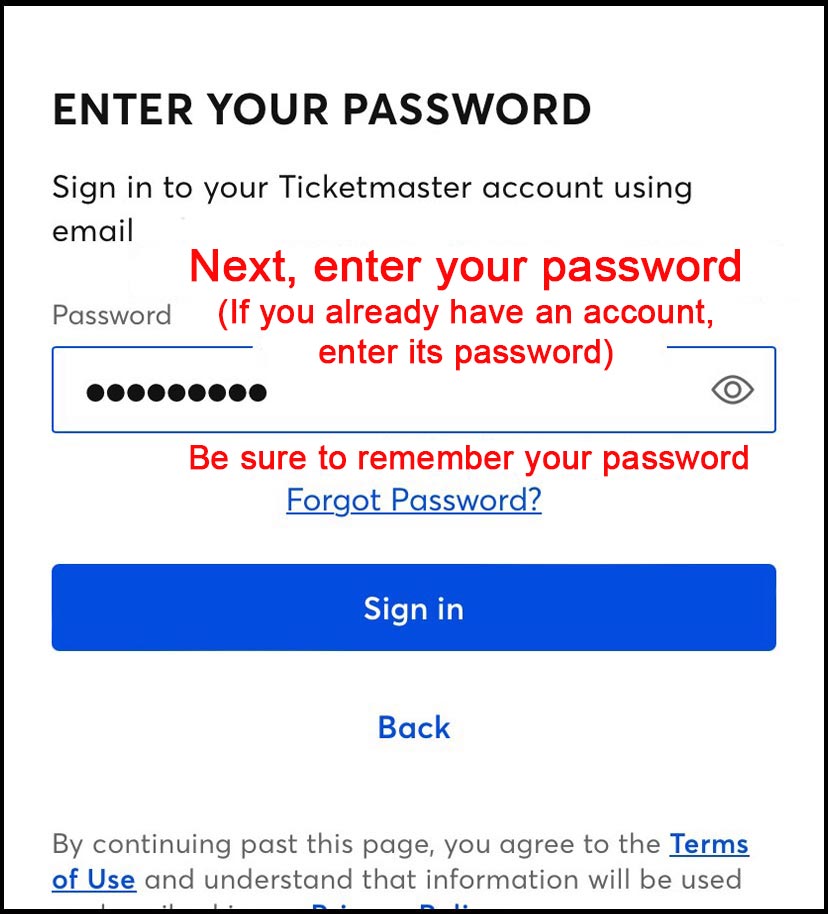
  1. Whether you already have an account or not, create an account using the same email address you used when making this purchase
  2. Once your account has been created, make a note of your password
  • For the phone number section, tap the U.S. flag, select “Other,” then enter +81 followed by your mobile number without the initial 0

Once your account has been created, receive your tickets from the email (required)

If you have received an email containing your ticket link, you can proceed

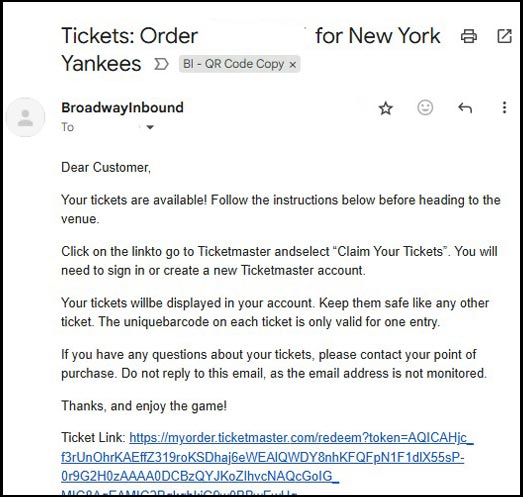
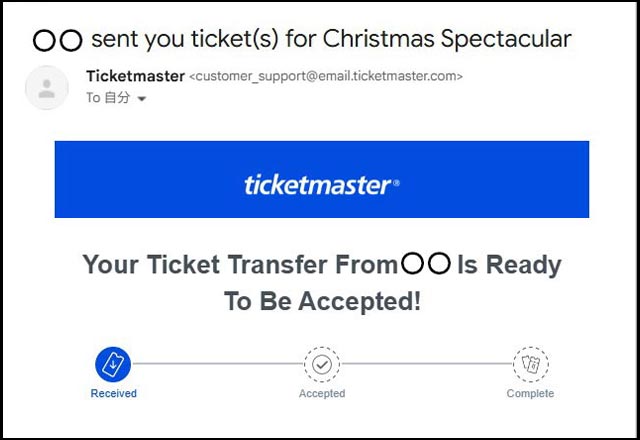
BroadwayInbound or Ticketmaster will send an email like the examples below, and once you receive it, you can move on to claiming your tickets.
※ The email will be sent to the email address you registered when making your reservation
※ The timing of the email depends on the show or event. If you still have not received it by 5 days before the performance or game, please contact us.

Pattern ①: English email from BroadwayInbound

Pattern ②: English email from Ticketmaster

If the email has arrived, first get ready to receive your tickets

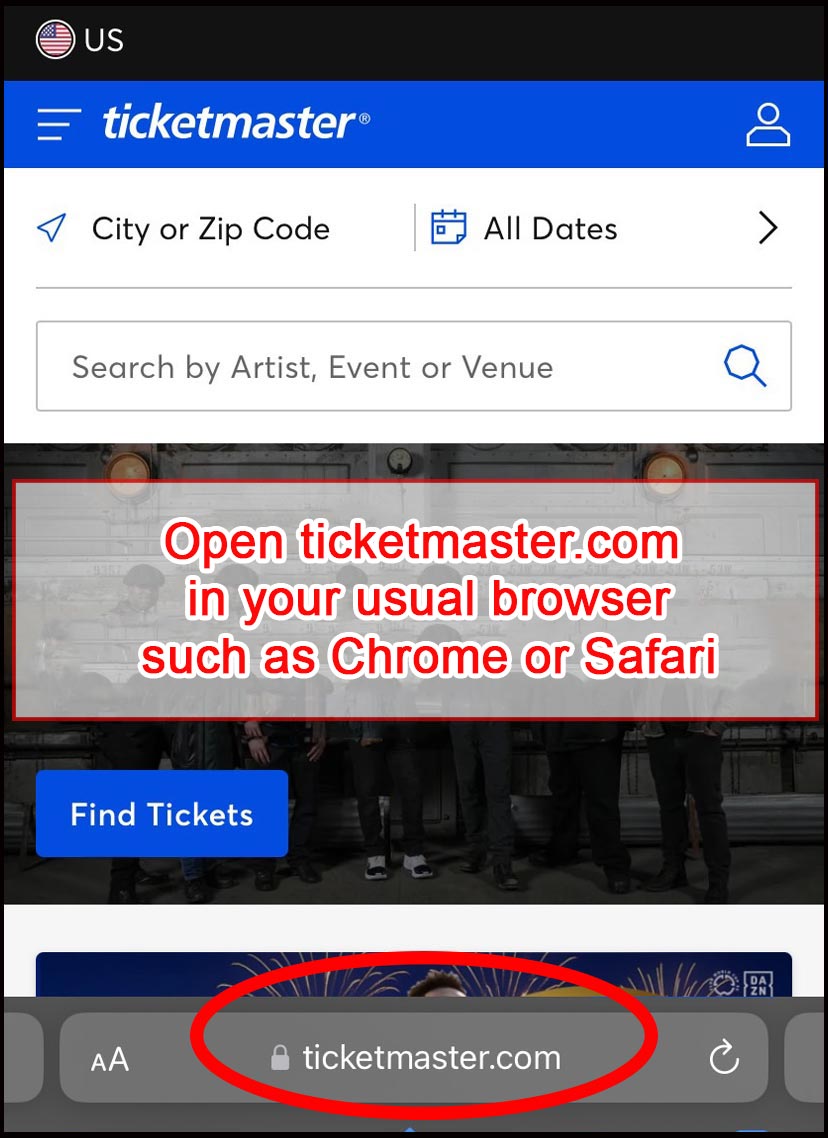
Please open ticketmaster.com in your usual browser (such as Chrome or Safari) and make sure you are already logged in to the account you created.
URL: https://www.ticketmaster.com
※ Please make sure to do this on your smartphone. Tickets will not display on a computer.

Open the link from the email and tap [CLAIM TICKETS]

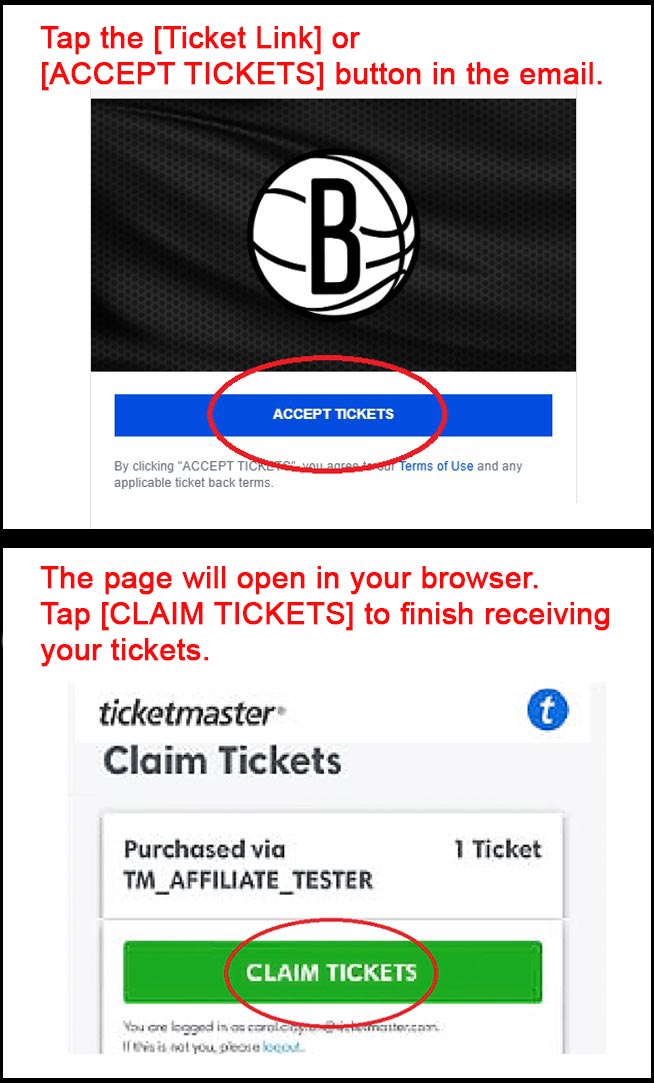
  1. Tap the 【Ticket Link】 or 【ACCEPT TICKETS】 button in the email
  2. The claim page will open. Tap 【CLAIM TICKETS】
  3. You will be taken to Ticketmaster, where your tickets will appear.

Once your tickets are displayed, add them to Apple Wallet

If the ticket details screen appears after you tap 【CLAIM TICKETS】…

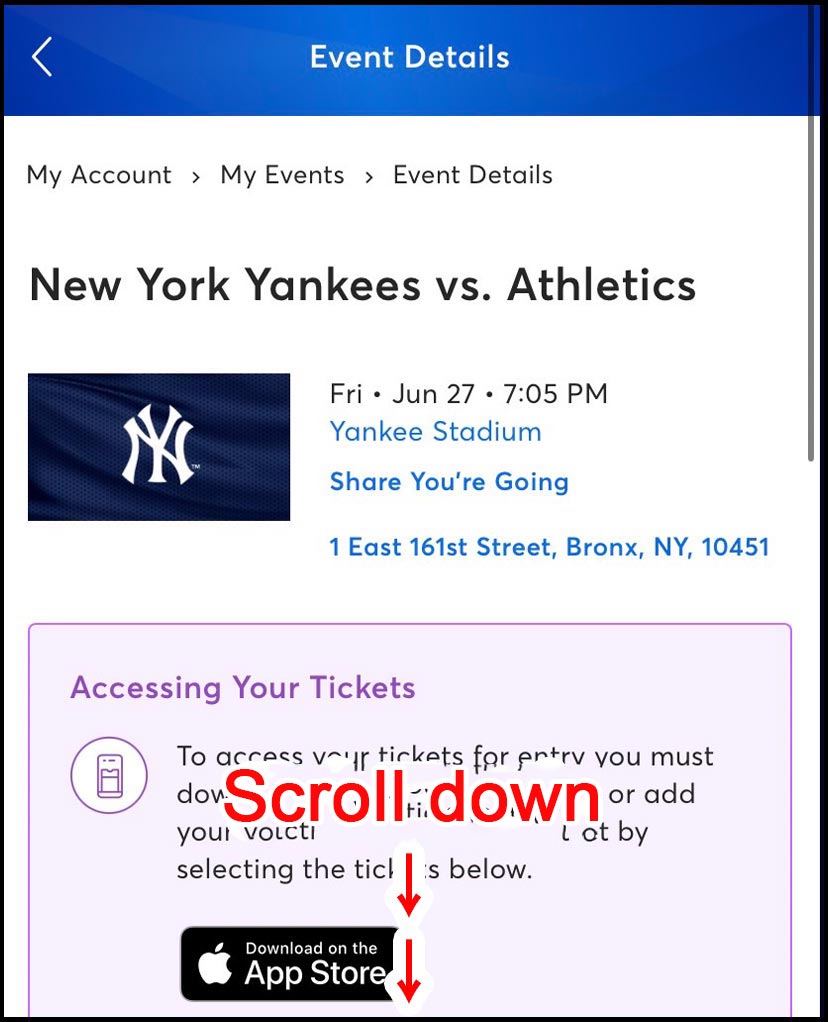
① Scroll down

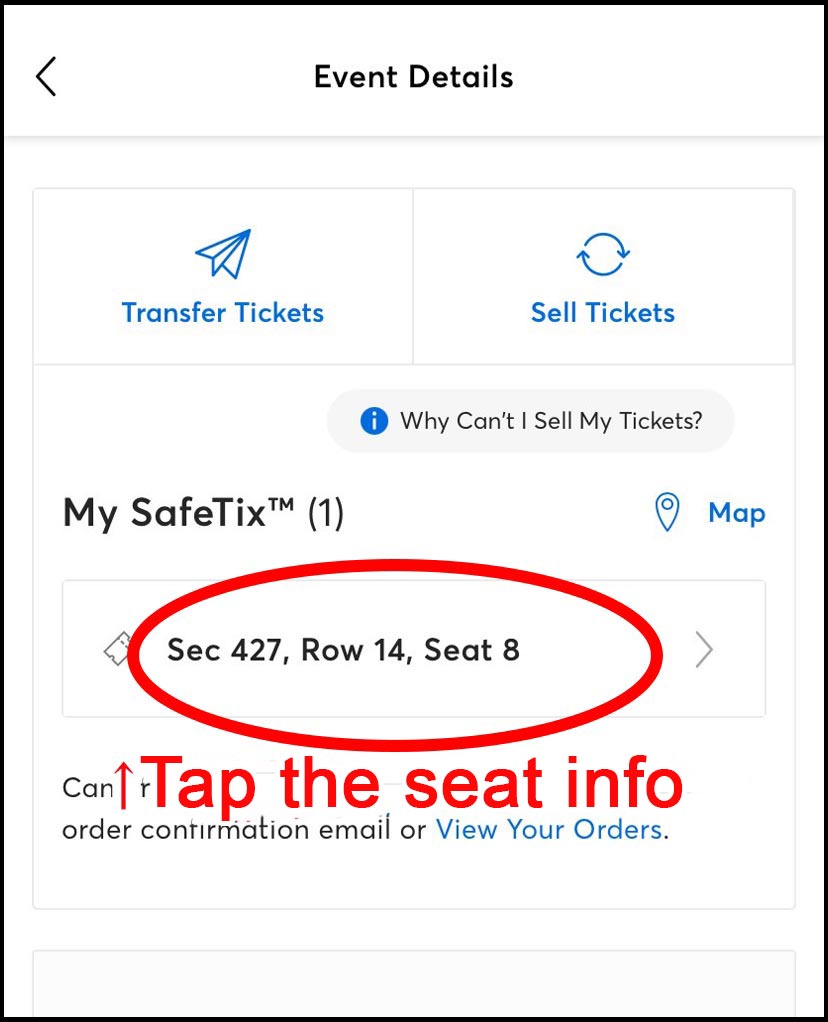
② Tap the seat information button

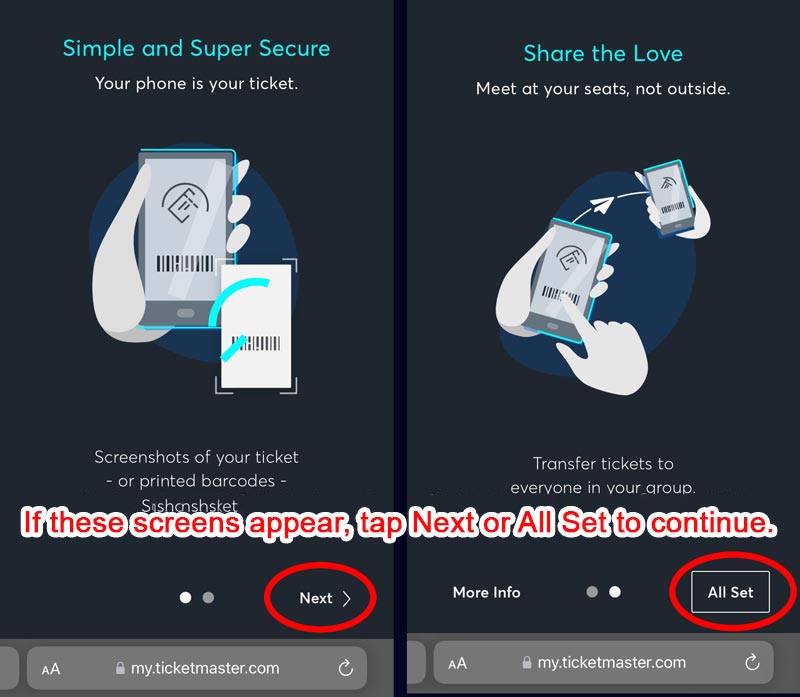
③ Skip the guidance screen

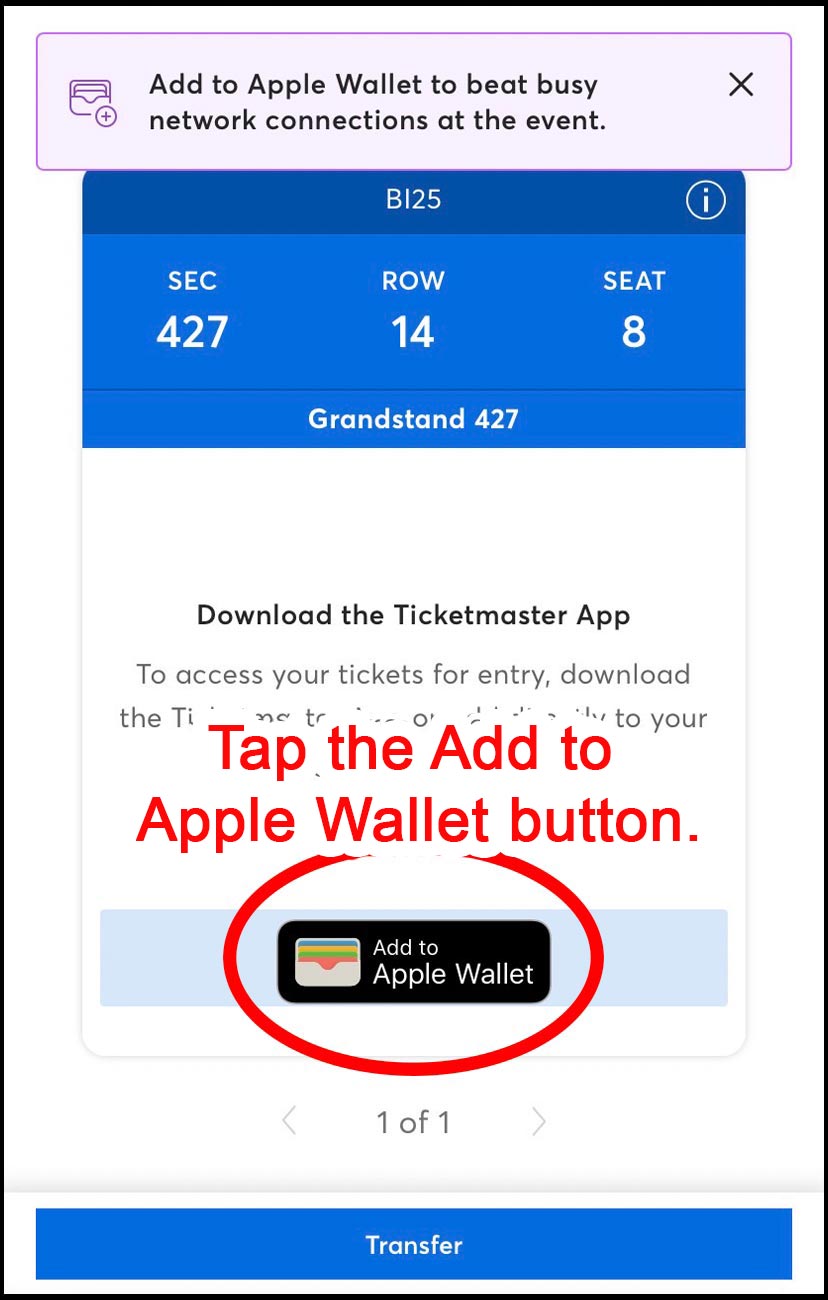
④ Tap the “Add to Apple Wallet” button. If this button does not appear for you, please contact us.

⑤ Your ticket has now been added to your smartphone Wallet. On the day of the event, simply hold this screen over the scanner to enter.

If you still cannot view your tickets properly…

If you cannot view your tickets correctly, please try logging back in to Ticketmaster.

  • Enter your account information on the Ticketmaster login page and sign in
  • While logged in to Ticketmaster, tap the person icon in the top right corner
  • Tap “My Tickets” or “Upcoming Events”
  • Tap the relevant event
  • Tap “View Tickets” or the seat information
  • Your tickets should then be displayed

Important notes

  • The email will come from “yourtickets (at sign) broadwayinbound.com” or “customer_support (at sign) email.ticketmaster.com.” In some cases it may go to your spam folder, so please check there if you do not see it
  • These tickets cannot be printed on paper
  • Please make sure to display them on your smartphone at the venue
  • Screenshots cannot be used
  • If the email does not arrive, please contact us
  • Due to updates or adjustments in Ticketmaster’s system, the wording and screen layout may differ from the examples shown above
  • ※ If you are additionally asked to download a team app: please connect to local Wi Fi, such as at your hotel or a cafe, and try downloading it there. Access may be restricted depending on your location, network, or VPN settings.

For customers who cannot receive their tickets through Ticketmaster (Q&A)

I cannot download the Ticketmaster app

You do not need to download the app. If the Ticketmaster app is not available on your device or in your region, please create your Ticketmaster account using your smartphone browser, such as Google Chrome or Safari.

Can I receive my tickets on a PC or laptop?

No. Ticketmaster tickets are mobile tickets that must be displayed on a smartphone at the venue, and they cannot be received on a PC or laptop. Please be sure to receive your tickets on your smartphone.

I opened it in my smartphone browser, but nothing appears

In some cases, switching to a different browser will solve the problem. For example, if you could not display your ticket in Google Chrome on your smartphone, try copying the link and opening it in Safari or another browser. Likewise, if Safari does not work, try Google Chrome instead. Changing browsers can sometimes fix the issue.

What is a smartphone browser?

A smartphone browser is an app you normally use for internet searches or browsing websites, such as Google Chrome, Safari, Microsoft Edge, or Firefox.

Ticketmaster tickets can be displayed either in a smartphone browser or in the app. If the app is not available on your device, please use your browser for everything from account registration to ticket receipt and ticket display.

I am not receiving emails from Ticketmaster

The email should be sent to the email address you registered at the time of booking from “customer_support@email.ticketmaster.com” with an English subject line that looks like “<〇〇 (sender name)> sent you ticket(s) for <〇〇 (event name)>”. Please be sure to check your spam folder as well, and if you still cannot find it, please contact us.

Why do I need to register an account only for Aladdin?

Aladdin is managed by a different ticketing company from other musicals. At that company’s request, a more secure ticket delivery method has been designated. We apologize for the extra step and appreciate your cooperation.

I absolutely cannot open Ticketmaster / I cannot complete registration

We are very sorry for the inconvenience. In some cases, Ticketmaster may not open properly depending on your network or location. Please first try again after arriving in the U.S.
If you are still unable to register, or if you are not comfortable using the internet, we can offer the following alternative ways to receive your tickets without using Ticketmaster.
Aladdin tickets ⇒ We can switch your order to paper ticket pickup at the theater, so if you would like this option, please email us saying, “I would like to switch to paper tickets.”
Yankees tickets ⇒ We can switch your order to a method where you receive a link to your tickets at the stadium instead (a mobile phone number is required to receive the link). If you would like this option, please email us saying, “I would like to switch to link delivery for my tickets.” Paper tickets are not available for Yankees games.